
Activity Creation
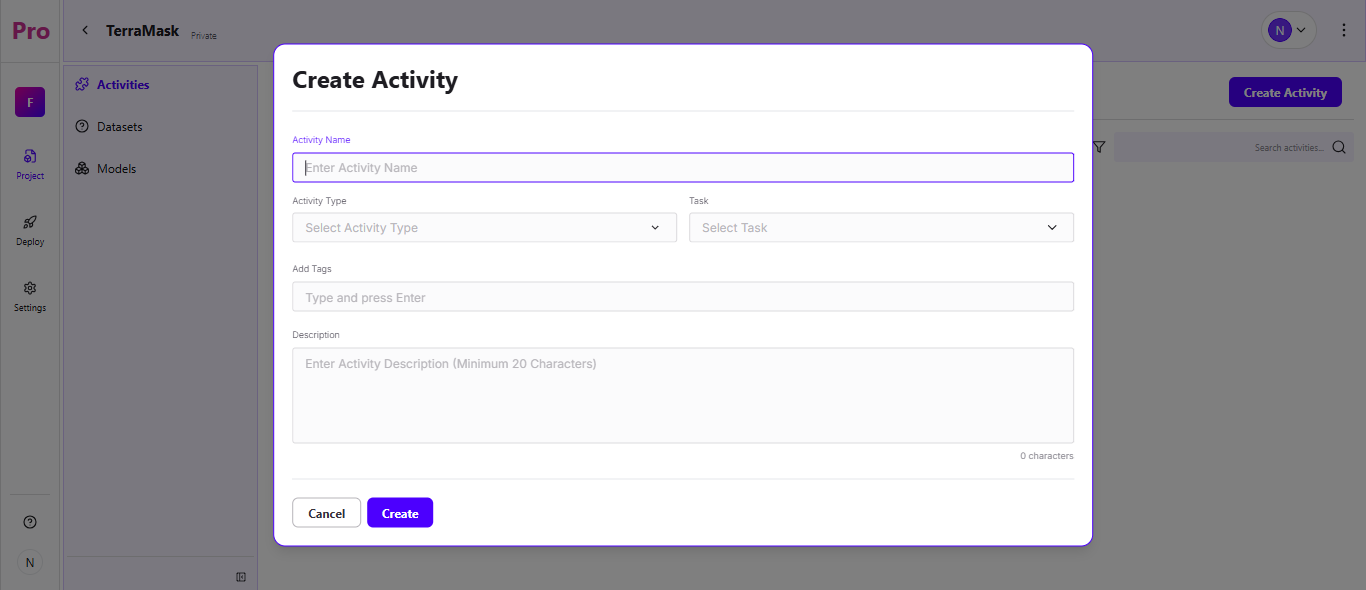
Once you create a project, you're taken inside it - the left sidebar shows the project's sections (Activities, Datasets, Models) and indicates which page you're currently on.
Click "Create Activity" in the top-right corner to create a new activity.
Enter a name for your activity in the Activity Name field.
Select the Activity Type from the dropdown:
Data Management-use this when you only want to upload, preview, visualize, and annotate your dataset without proceeding to model training. This is useful when you are still preparing or cleaning your data.
Model Training-use this when your data is already annotated and ready, and you want to directly train a model without going through data management steps again.
Data Management + Model Training-use this when you want to do everything in one activity, from uploading and annotating your data all the way through to training the model. This is the most commonly used option for end to end workflows.
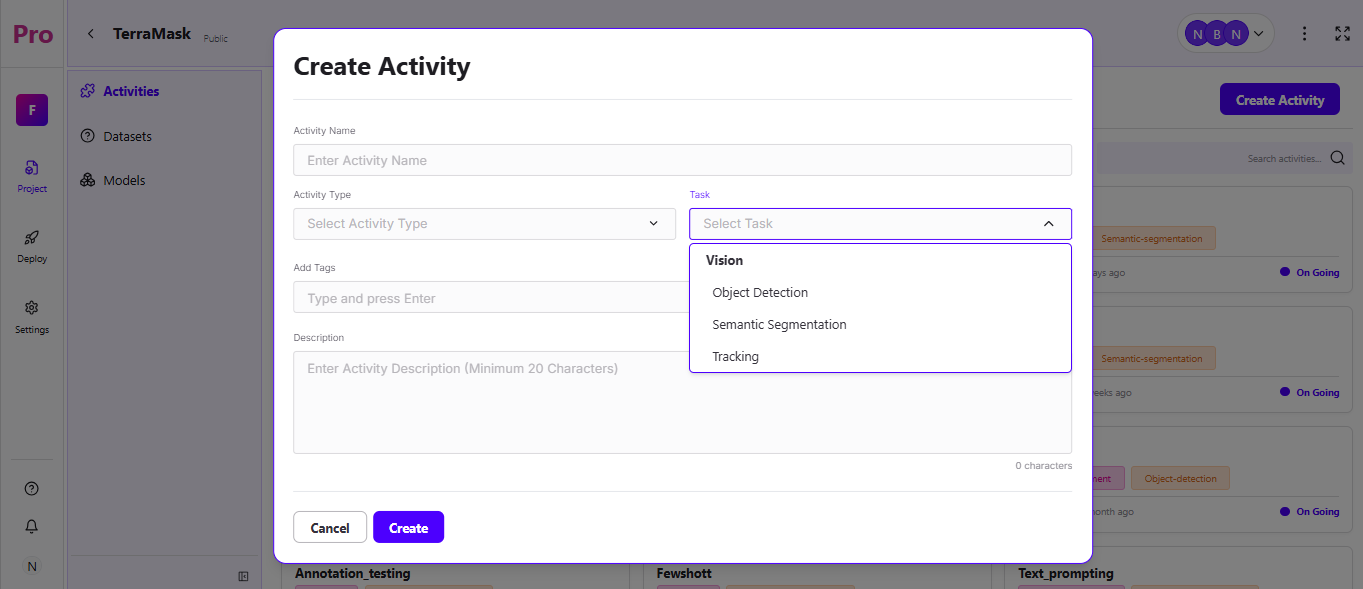
Select the Task from the dropdown. The options shown depend on your workspace Domain/Sub-domain:
CV Domain (e.g., Manufacturing, Retail, Space & Environment )
Tasks are grouped under "Vision":
Object Detection , Semantic Segmentation , Tracking
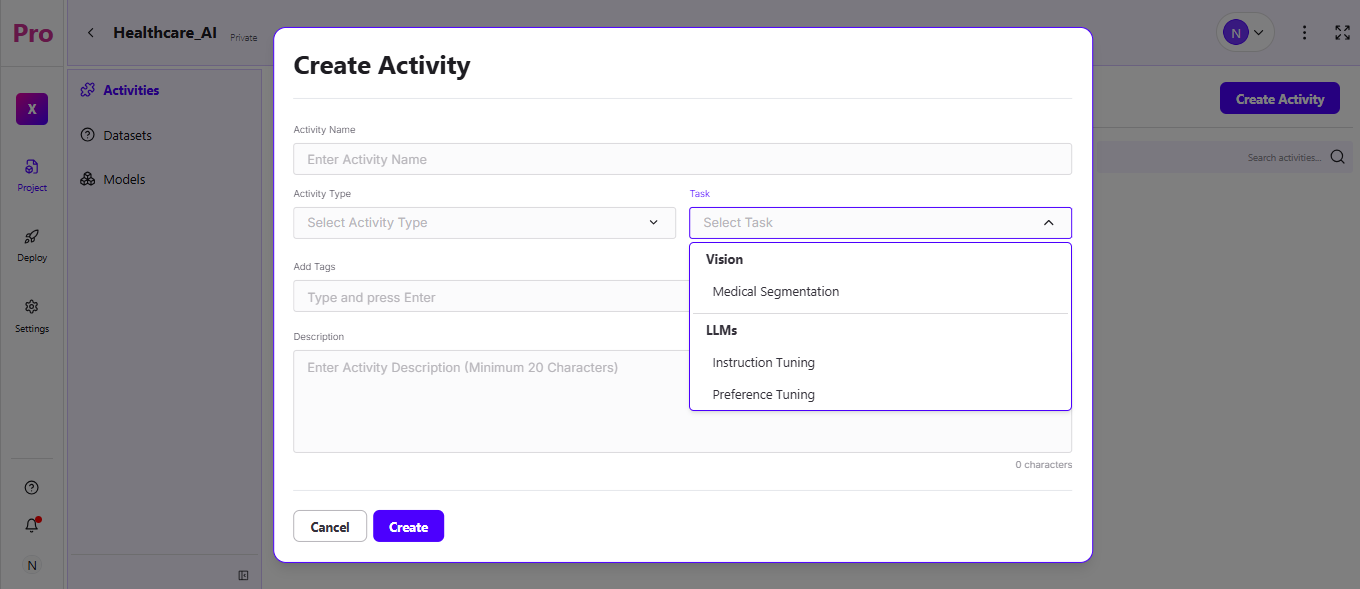
Healthcare Domain
While creating a workspace, select only the subdomains related to your task. If you are working on a Computer Vision (CV) task, choose the subdomains related to CV. If you are working on a GenAI task, choose the subdomains related to GenAI. For reference, I have selected all the subdomains related to both CV and GenAI, as shown in the screenshot below.
Tasks are grouped under "Vision":
Medical Segmentation
Tasks are grouped under "LLMs":
Instruction Tuning
Preference Tuning
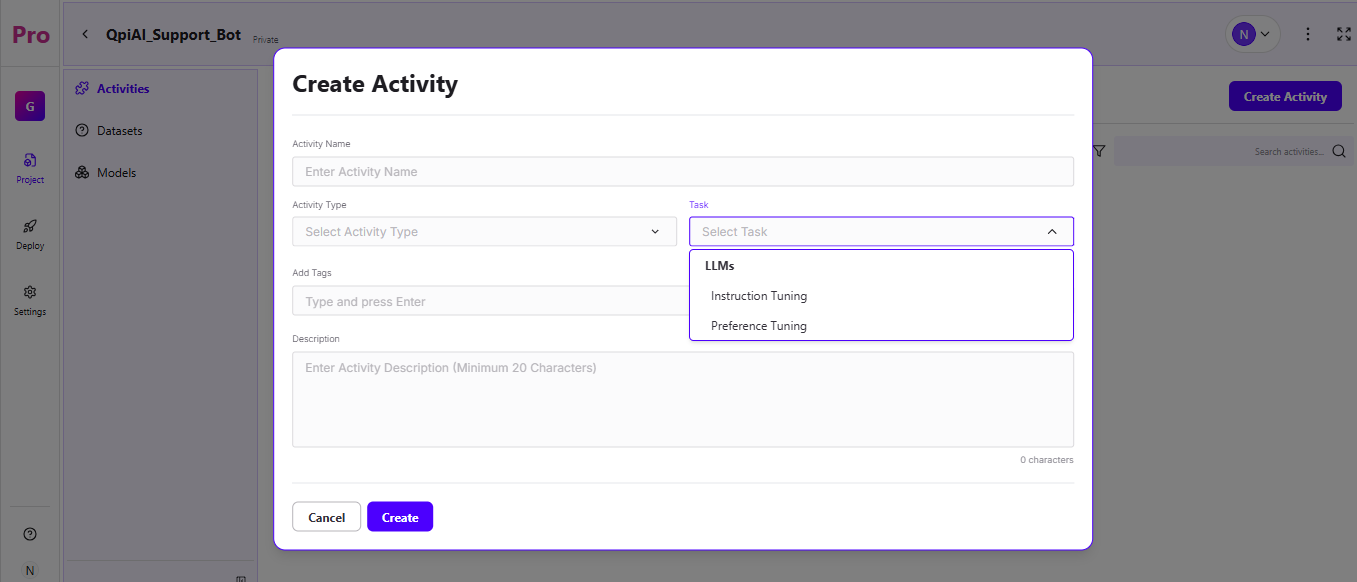
3.GenAI Domain (e.g., Customer Service, Education, HR & Recruiting)
Tasks are grouped under "LLMs":
Instruction Tuning
Preference Tuning
Optionally, add relevant keywords using "Add Tags" (type a tag and press Enter).
Enter a Description for the activity (minimum 20 characters).
Click "Create" to finish, or "Cancel" to discard.
💡: Annotators do not have access to create an Activity. The Task options available in the dropdown are determined by the Domain and Sub-domain selected at workspace creation — ensure you are in the correct workspace before creating your activity.