
Workspace Creation
A workspace is the top level of the Workspace → Project → Activity hierarchy in Pro. It is the space where your team’s work lives: you create projects inside it, and projects contain activities. When you create a workspace, you give it a name, an optional logo, and a Domain and Sub-domain, and you can add team members. Choose the Domain and Sub-domain based on the type of task you plan to perform.
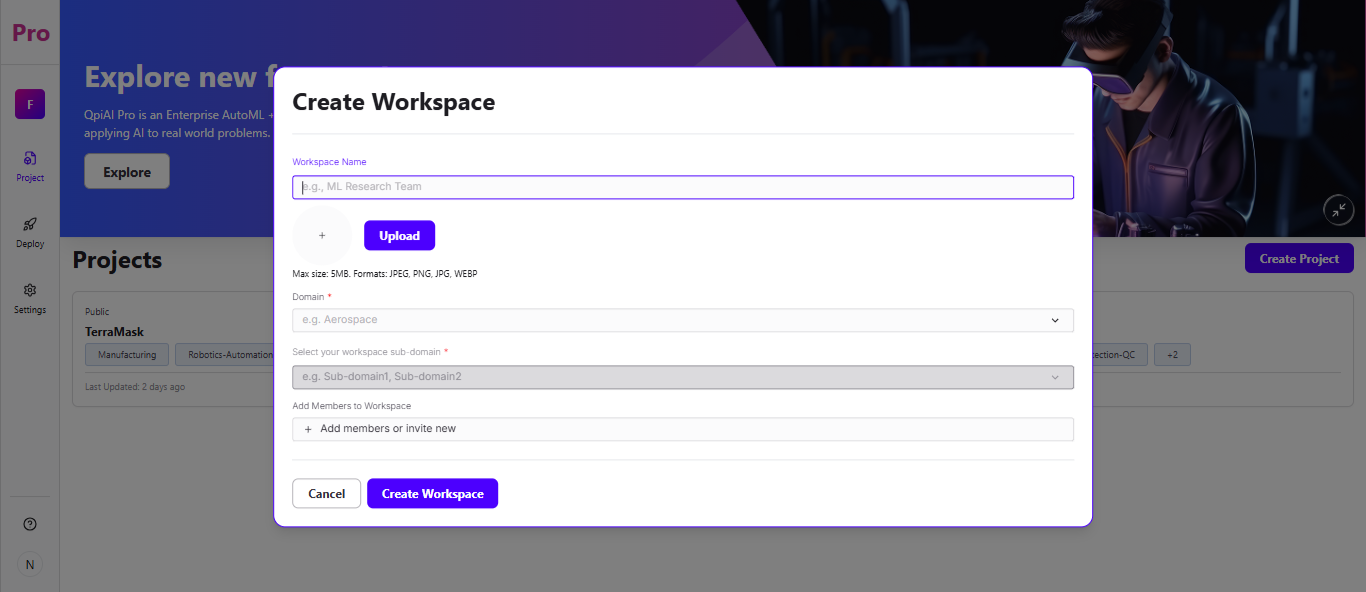
Click the workspace icon in the sidebar, then select "+ Create Workspace".
Enter a name for your workspace in the Workspace Name field (e.g., "ML Research Team").
Optionally, click "Upload" to add a workspace logo/image. (Max size: 5MB; supported formats: JPEG, PNG, JPG, WEBP)
Select your Domain and Sub-domain from the dropdowns based on the task type you want to perform:
For CV tasks (Object Detection, Segmentation, Medical Segmentation) — select a CV Domain and Sub-domain (e.g., Domain: "Manufacturing", Sub-domain: "Defect Detection & Quality Control")
For LLM tasks (Instruction Tuning, Preference Tuning) — select a GenAI Domain and Sub-domain (e.g., Domain: "Customer Service", Sub-domain: "Support Ticket & FAQ Automation")
For Medical Image Segmentation — select Domain: "Healthcare", Sub-domain: "Medical Imaging & Radiology" or "Pathology & Histology"
Refer to Appendix A: Domain and Sub-domain Reference for the complete list of available Domains, Sub-domains, and their task types.
Select your workspace sub-domain(s) from the dropdown.
Optionally, click "+ Add members or invite new" to add team members to the workspace at this stage.
Click "Create Workspace" to finish, or "Cancel" to discard.