User Profile / Account Menu
Hover over the User Avatar (bottom of the left sidebar — shows the user's initial, e.g., "N") to reveal two options:
User Details — opens the Account Settings page
Logout — signs you out of the current session and redirects to the login screen
User Details
Clicking "User Details" takes you to the Account Settings page, which has two tabs — Profile and Security.
Profile Tab
Displays your personal and organization information. Click "Save" to apply changes or "Cancel" to discard.
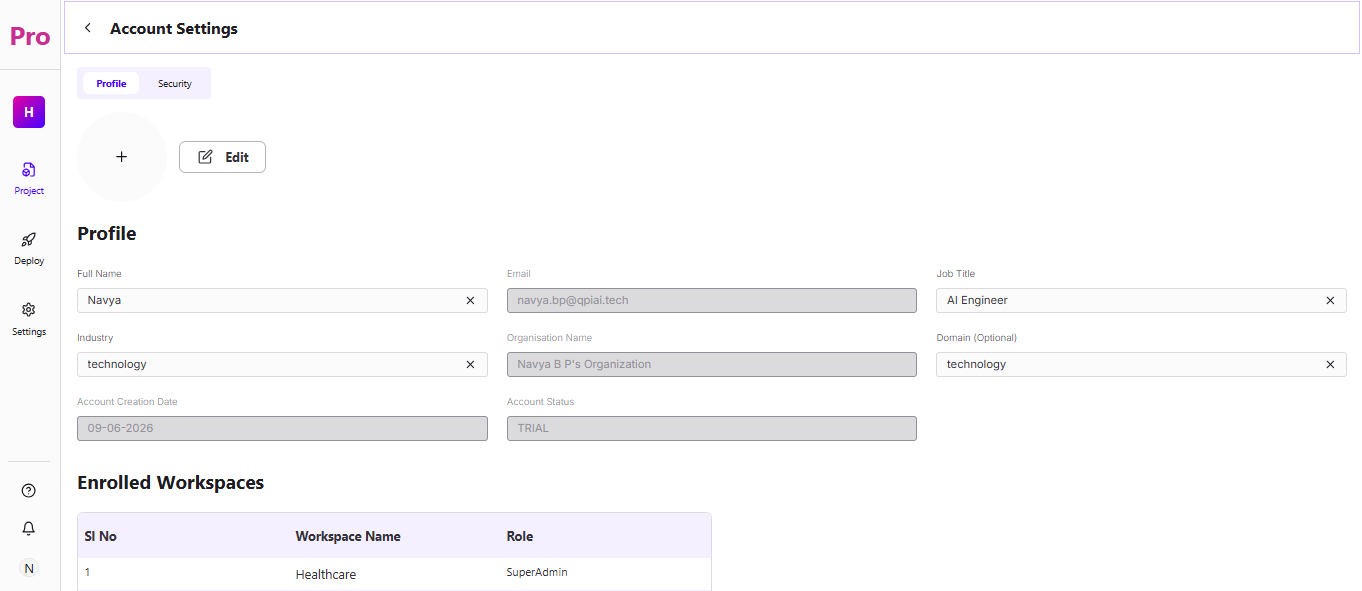
Click the "+" icon to upload a profile image or avatar to represent your account.
Click the "Edit" button (beside the "+" icon) to modify your profile image/avatar.
The following fields are editable:
Full Name — your display name
Email — your registered email address (read-only)
Job Title — your role or title
Industry — your industry sector
Organisation Name — the organization you belong to (read-only)
Domain (Optional) — optional business domain
Account Creation Date — the date your account was created (read-only)
Account Status — your current plan (e.g., TRIAL) (read-only)
Below the profile fields, an Enrolled Workspaces table shows every workspace you have access to along with your Role in each (e.g., Superadmin, Admin, Engineer).
Security Tab
Lets you manage your sign-in options:
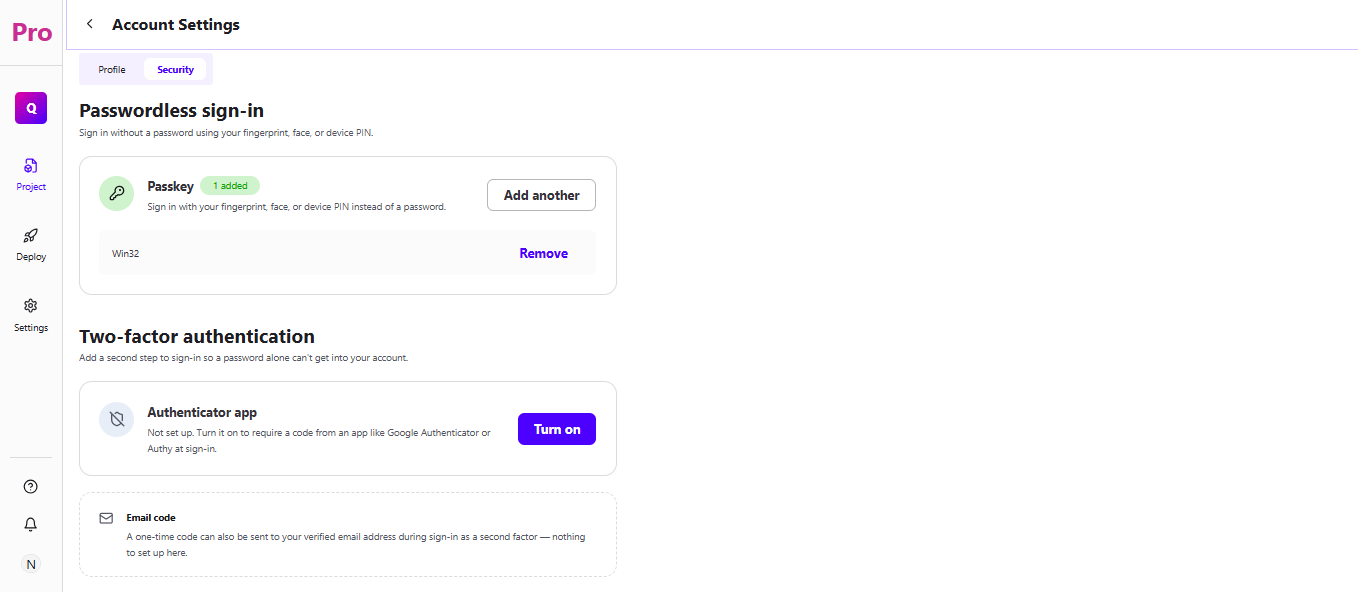
Passwordless Sign-in (Passkey) — sign in using fingerprint, face, or device PIN instead of a password. Existing passkeys are listed with "Add another" and "Remove" options.
Two-Factor Authentication:
Authenticator App — off by default. Turn it on to require a one-time code from apps like Google Authenticator or Authy during sign-in.
Email Code — sends a one-time code to your verified email during sign-in. No setup required.
Logout
Hover over the User Avatar (bottom of the left sidebar) to reveal the menu.
Click "Logout" to sign out of the current session and return to the login screen.