Project Creation
Click "Create Project" from the dashboard to open the project creation form.
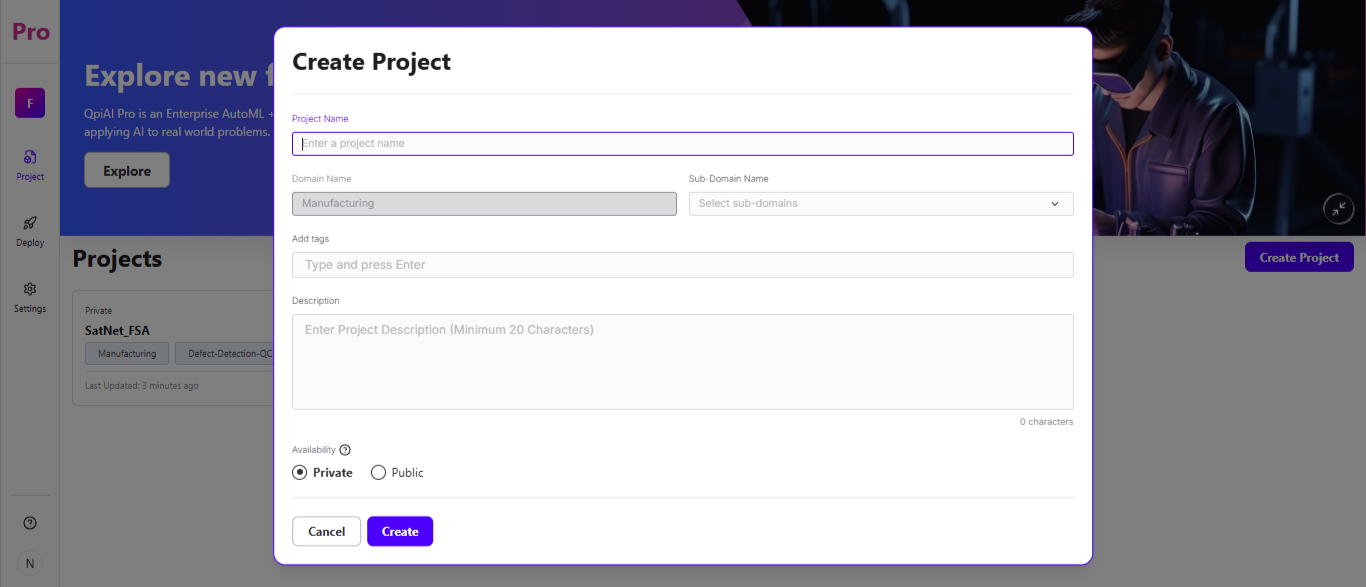
The Sub-Domain dropdown options shown will vary based on the Domain selected during workspace creation.
Enter a name for your project in the Project Name field.
The Domain Name field is pre-filled and greyed out, showing the domain you selected while creating your workspace - this cannot be changed at the project level.
Select one or more relevant options from the Sub-Domain Name dropdown.The sub-domains listed here are filtered based on your workspace Domain:
If your workspace is a CV domain (e.g., Manufacturing) — CV-related sub-domains will appear (e.g., Defect Detection & Quality Control, Robotics & Automation Vision)
If your workspace is a GenAI domain (e.g., Customer Service) — GenAI-related sub-domains will appear (e.g., Support Ticket & FAQ Automation)
If your workspace is Healthcare — both CV sub-domains (Medical Imaging & Radiology, Pathology & Histology) and GenAI sub-domains (Medical Q&A & Drug Information, Clinical Documentation) will appear
Optionally, add relevant keywords using "Add tags" (type a tag and press Enter).
Enter a Description for the project (minimum 20 characters).
Choose the project's Availability - Private or Public.
Scroll down to "Add Members to Project" to optionally give specific workspace members direct access to this project.
If the project is set to Public, it is visible to all members within the workspace by default. If set to Private, only the creator can see it unless members are explicitly added via "Add Members to Project".
Click "Create" to finish, or "Cancel" to discard.
The Domain is locked at the workspace level — all projects within a workspace inherit that Domain. Ensure your workspace was created with the correct Domain before creating your project. Refer to Appendix A: Domain and Sub-domain Reference for the full list.
Annotators do not have access to create project.