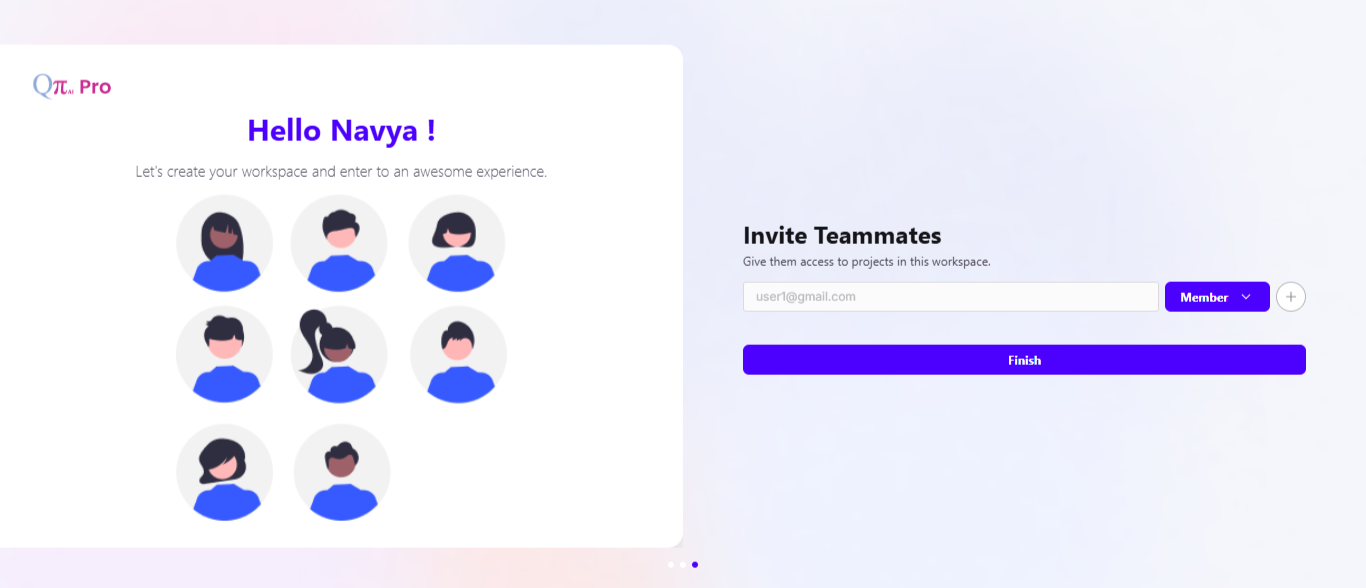
Sign Up for QpiAI Pro Platform - Initial Steps:
Getting started with QpiAI Pro is quick and straightforward. Follow these steps to set up your account and begin your AI journey:
Access the Platform
Open the QpiAI Pro application in your web browser.(link)
Ensure you have the login credentials. First-time users can register by clicking the "Sign Up" button on the login screen.
New User Registration
On the registration page, enter your Name, Company Email, and Phone number, then create a Password and confirm it.
Click the "Send confirmation Link" button to proceed, or sign up directly using Google or GitHub.
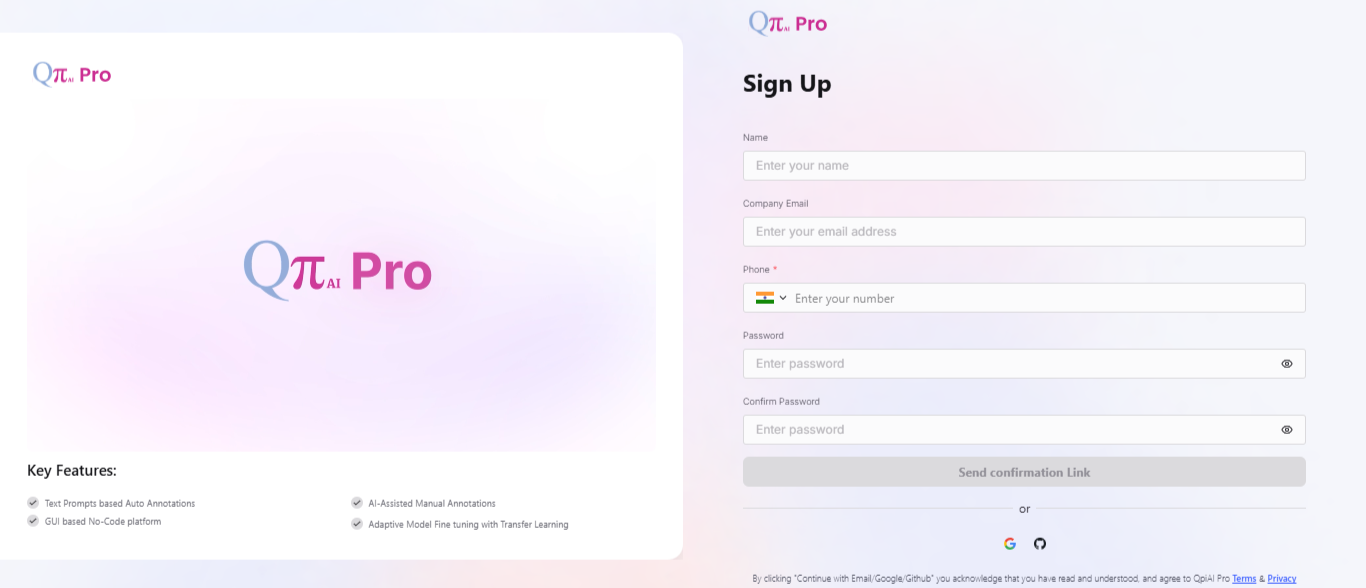
Complete Your Profile
Optionally, click "Upload" to add a profile photo. (Max size: 5MB; supported formats: JPEG, PNG, JPG, WEBP)
Enter your full name, job role, and select your industry from the dropdown.
Click "Continue to Dashboard" to proceed.
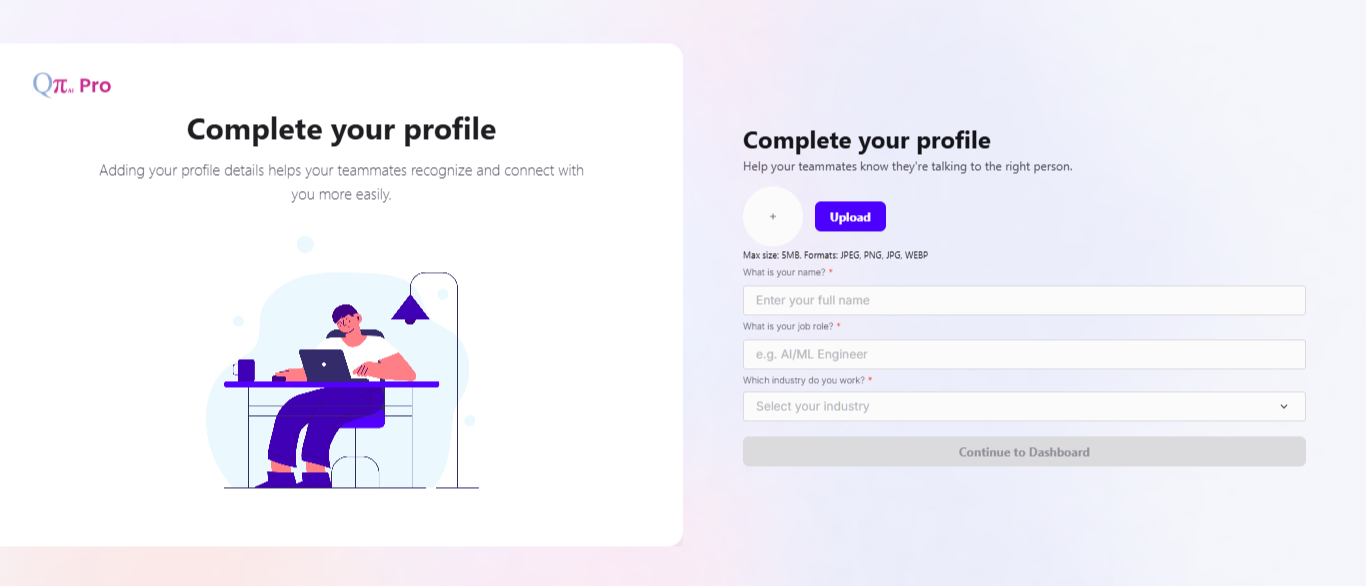
Create Your Workspace
Enter a Workspace Name for your company/team and optionally upload a workspace icon, then click "Next".
Select your Workspace Domain and Sub-domain(s)
Select one Domain from the dropdown (e.g., Healthcare, Finance, Manufacturing).
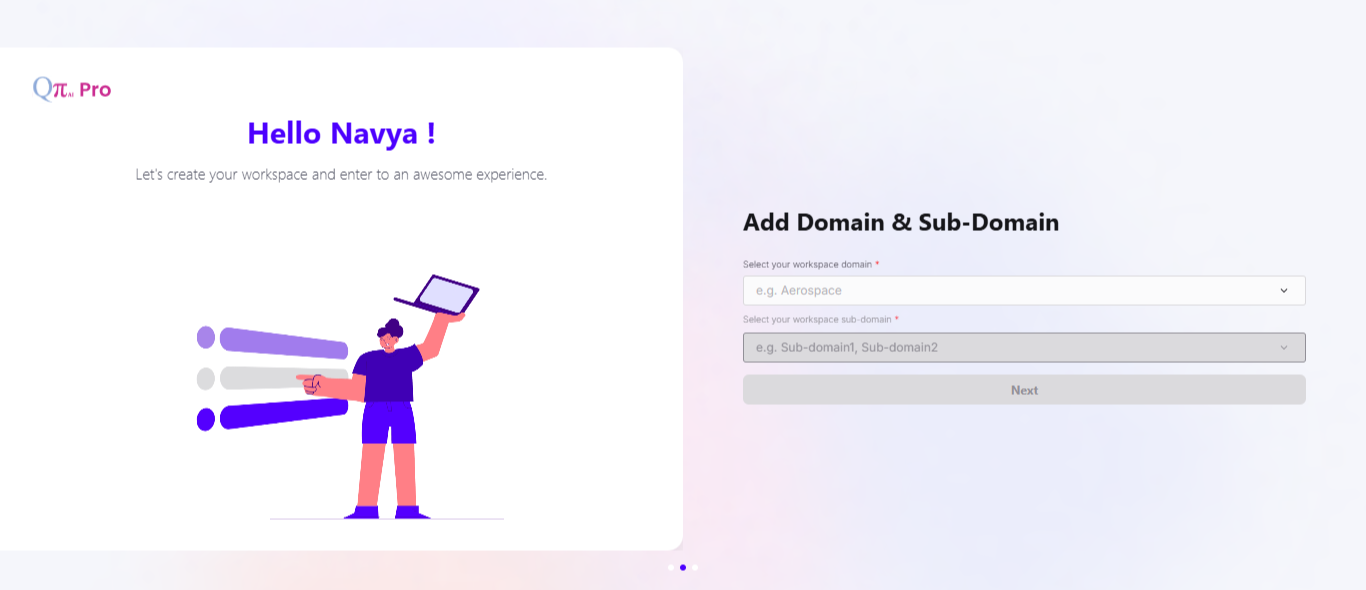
Based on the Domain selected, the Sub-domain dropdown will automatically display only the sub-domains relevant to that Domain. You may select one or more Sub-domains.
Click "Next" to proceed.
There's no separate CV/GenAI selector - the Sub-domain you choose automatically determines this. Use the guide below to pick the Domain and Sub-domain that match the kind of work you intend to do.
For a complete list of available Domains, Sub-domains, and their corresponding modality (CV or GenAI), refer to Appendix A: Domain and Sub-domain Reference.
Healthcare, Finance, and Legal are the only Domains that contain both CV and GenAI Sub-domains - pick the specific Sub-domain that matches your task, not just the Domain.
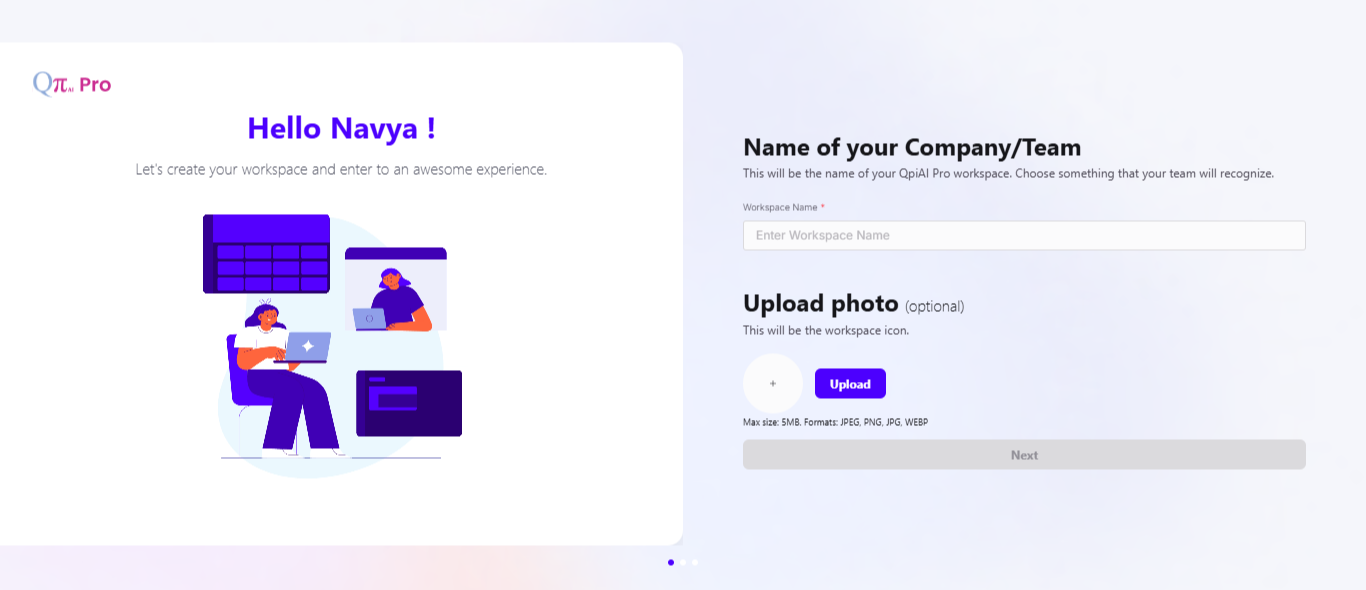
6. Invite teammates
Optionally invite teammates: enter their email, choose a role (e.g., Member), and click "+" to add a member. Members will be added to the organization.
This only adds them to your Organization. It does not automatically give them access to any specific Workspace.
Click "Finish" to complete setup and enter your new workspace.